Quick Answers – Wi-Fi
Need help troubleshooting your Wi-Fi, reconnecting cables, or setting up a mesh extender? Check our FAQs below for helpful tips!
How do I reconnect my Internet cables?
Kids unplug the cables? Or, just need help identifying the cables and plugs? No problem! It’s easy to get your Internet reconnected using the steps below:
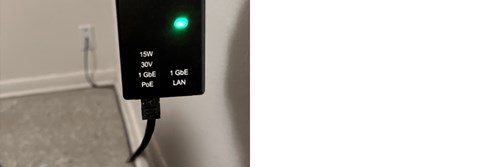
- Locate the cable running out of your wall. (see left image) Plug it back into the port on the small black box marked “POE” (Power over Ethernet). Make sure the box is still connected to power.
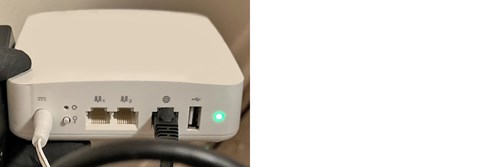
- Locate the cable running out of your computer’s LAN port. Plug it back into your white Wi-Fi Router box in the port marked with a globe icon. (see right image) Make sure the Wi-Fi Router is still connected to power.
- If you need help identifying the LAN port on your computer, consult your computer’s Users Manual or search Google.com for more information about your computer’s ports.
Still need help with cables? Contact our support team.

How do I reset my radio antenna?
If your tech support asks you to reset your radio antenna, here is how to identify the correct cable and to reset the radio antenna:
- Locate the cable running from your wall into a small black box. (see image) This is the cable connected to your radio antenna outside.
- To reset the radio antenna, unplug that cable from the black box, wait at least 15 seconds, and then plug it back into the same port. You should see the letters “POE” (Power over Ethernet) designating the correct port on the black box. (see image)
Still need help? Contact our support team.
If your tech support asks you to reset your router, here is how to identify the correct cable and to reset the router:
- Locate the cable connecting your computer to the white Wi-Fi Router box. (see image)
- To reset the router, unplug the cable from the white router box, wait at least 15 seconds, then plug it back into the same port. You should see a globe icon designating the correct port on the Wi-Fi Router. (see image)
Still need help? Contact our support team.
How do I troubleshoot an Internet outage?
Before contacting customer service, try these tips to quickly check the status of your Internet connection and to troubleshoot a service outage at your location.
- Use the ArisControl App on your smart phone to check if an outage has occurred.
(If you do see an outage listed, the Aristotle Team will already be looking into restoring service as soon as possible. You should not need to take any action—or to contact customer service.) - Check your connections and cables to ensure none have come unplugged or been damaged, interrupting service at your location.
- Loss of power at your location could also cause loss of service.
• Make sure your radio antenna (small black box) and white Wi-Fi Router box both have power.
• Ensure power cables are connected and intact.
• Check to make sure a power breaker has not been thrown and that the room/outlet is receiving power.
Still need to contact Aristotle to report an outage? Contact our support team.
What can I do about slow service?
Here are tips for quickly checking the speed of your Internet connection and troubleshooting slowed service.
- Run a speed test on your smart phone using the ArisControl App to see the actual speeds you are receiving. If you are exceeding your bandwidth, it’s easy to upgrade to higher speeds!
- Check how many devices (computers, TVs, smart phones) are connected to the Internet/Wi-Fi. Too many devices can drastically slow your internet service. Using security or Ring doorbell cameras almost always requires a higher speed package.
- If your household is using three or more streaming or gaming services at the same time, you could experience very slow connections. (Devices streaming HD video consume about 15Mbps.) Using too many devices? Contact Aristotle to upgrade to higher speeds!
How do I set up a Wi-Fi Extender (Mesh Unit)?
Here are steps to set up a Wi-Fi mesh unit and then place it properly at your location.
- Plug in the Mesh Unit to a power outlet near your white Wi-Fi Router box (Main Unit).
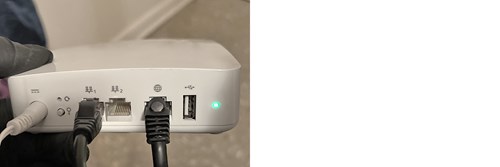
- Connect the Mesh Unit to your Wi-Fi Router (Main Unit) by plugging the provided cable into LAN Port “1” on each device. (see image)
- Wait for the colored lights on the back of the Mesh Unit to cycle until flashing red. This indicates set up is complete.
- Unplug the cable connecting the two units. (You can store this cable in the box now.)
- Choose the best location for the mesh unit to extend the range of your Wi-Fi Zone. (See below for help.)
- Plug in the Mesh Unit to a power outlet at the new location and wait for it to reconnect wirelessly.
Need to expand your Wi-Fi Zone? Contact Aristotle to upgrade with a GigaSpire Mesh BLAST U4m!
What is the best location for a Wi-Fi Extender (Mesh Unit)?
Here are tips to help choose the best location for a Mesh Unit and extend the range of your Wi-Fi Zone.
- Be sure a power outlet is nearby to power the Mesh Unit.
- Find a location approximately 60–70 feet from the Wi-Fi Router (Main Unit).
- Place the Mesh Unit in a location off the floor—somewhere with a high vantage point.
- Make sure that the unit is away from corners and free of nearby obstructions (walls, appliances, concrete, metal, etc.). Note that plywood and drywall cause almost no signal loss.
Can I Make Calls on Wi-Fi When Cell Service Is Out?
If your cell phone isn’t getting service because of an outage, you can still make calls using your Aristotle Wi-Fi. This is called Wi-Fi Calling, and it works anywhere you have a good internet connection.
Follow the steps below to enable Wi-Fi Calling on your mobile phone.
Step 1: Download a Calling App
Go to your phone’s App Store (or Google Play on Android) and download a Wi-Fi Calling app. Two easy, well-known options are:
-
- Google Voice
Install the app and follow the setup steps it gives you.
Step 2: Turn On Wi-Fi Calling on Your Phone
If you have an iPhone:
-
-
- Open Settings
- Tap Cellular
- Tap Wi-Fi Calling
- Turn Wi-Fi Calling ON
- Enter or confirm your 911 emergency address
-
Once it’s on, your phone will use Wi-Fi to make calls when cell service is weak or gone. You’ll see “Wi-Fi”at the top of your screen during calls.
If you have an Android phone:
-
-
- Make sure you’re connected to your Aristotle Wi-Fi
- Open Settings
- Tap Connections or Network & Internet
- Look for Wi-Fi Calling and turn it ON
-
On some Android phones, Wi-Fi Calling may be hidden in different spots. If you don’t see it right away, check:
-
- The Phone app settings
- Your carrier’s app (like “My Verizon”)
- A “More” or Advanced menu
You're Ready to Make Calls
Once Wi-Fi Calling is turned on, you should be able to make and receive calls using your Aristotle internet, even if cell towers are down.
If you need help, don’t hesitate to reach out—we’re happy to walk you through it.
Pets Eat Cables!
The cables that Aristotle installs are especially tempting for dogs and other pets to chew. Please keep them safe by running them behind a desk, chair or object. Protect your investment and avoid unexpected outages! (The cost of replacing internet cables is covered by ArisShield but only for two service calls within a 12-month period.)